Example Setup
Here's an example setup to give you an idea how to use PlayerAudioTXL for your worlds.
If players are using earmuff, this system will NOT override any volume outside the earmuff range!
Their earmuff must be disabled for PlayerAudioTXL to allow long range broadcasts/comms.
Example 1 - Club Venue
Situation
You are a venue/club owner wanting to add in comms system. Your world has a greenroom, a Front of House desk and a stage.
You have these requirements:
When standing inside the greenroom, you can hear FOH and the stage at a comms volume. You cannot hear the audience.
Only the FOH can hear you at a comms volume in the greenroom. The stage and the audience cannot hear you in here.

When standing at FOH, you can hear the greenroom and the performer at a comms volume. You can hear audience at the normal volume.
The stage and the greenroom can hear you at a comms volume in here. Audience can hear you at the normal volume in here.

When standing at the stage, you can hear FOH at a comms volume. You can hear audience at the normal volume. You cannot hear the greenroom.
Audience will hear you at broadcast volume in here. FOH and the greenroom can hear you at a comms volume in here.
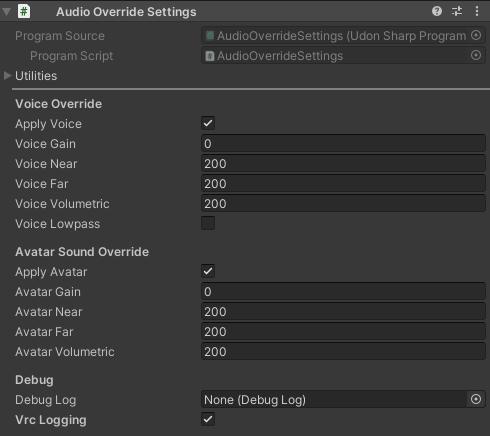
Profiles
It is recommended to group all your profiles in an empty object.

Default Profile
The profile for global players, who are not in any zones.
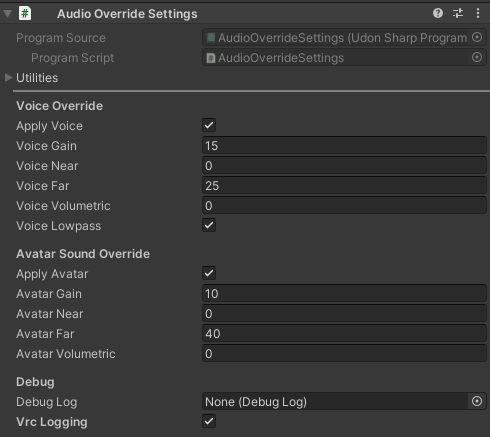
Comms Profile
The profile used for comms/direct volume. So you can hear from FOH at the stage and greenroom.
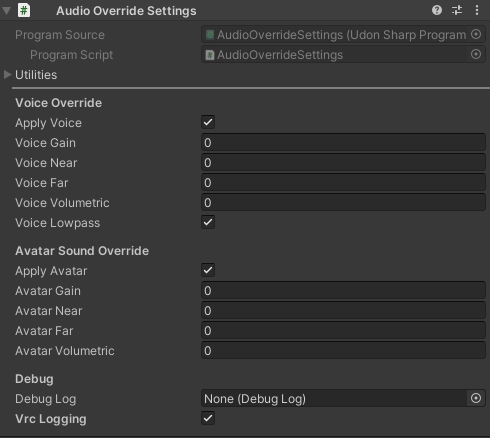
Mute Profile
The profile used for muting players.
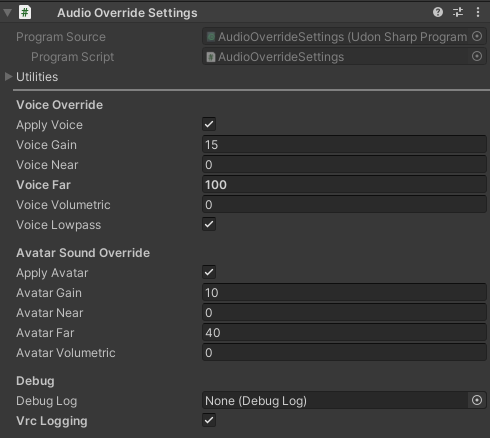
Broadcast Profile
The profile used for broadcasting players. For example using a microphone.
Zones
It is recommended to group all your zones in an empty object.

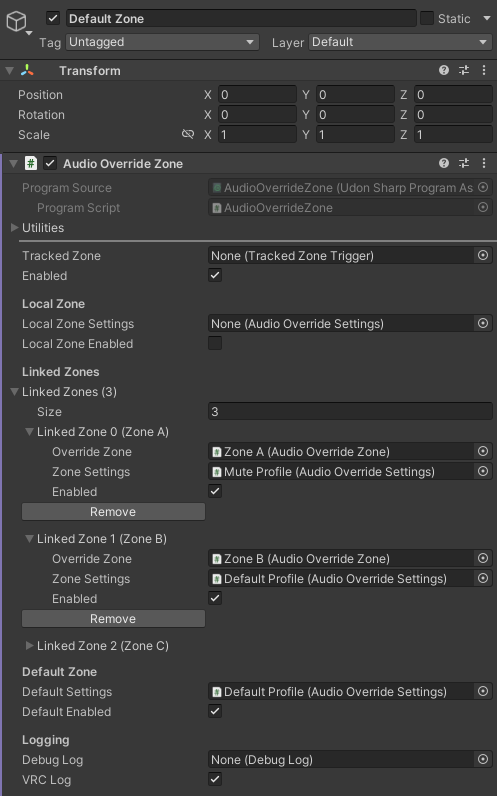
Default Zone
Local zone is left empty, as we prefer to use the Default Zone settings.
Linked zones:
- Zone A (Greenroom): Anyone in the default zone can NOT hear the greenroom.
- Zone B (FOH): Anyone in the default zone can hear the FOH with normal profile, so they can listen to staff yelling at them.
- Zone C (Stage): Anyone in the default zone can hear the Stage with broadcast profile, simulating a stagewide always-on microphone.
Default zone is set to Default profile, so that people can just talk.
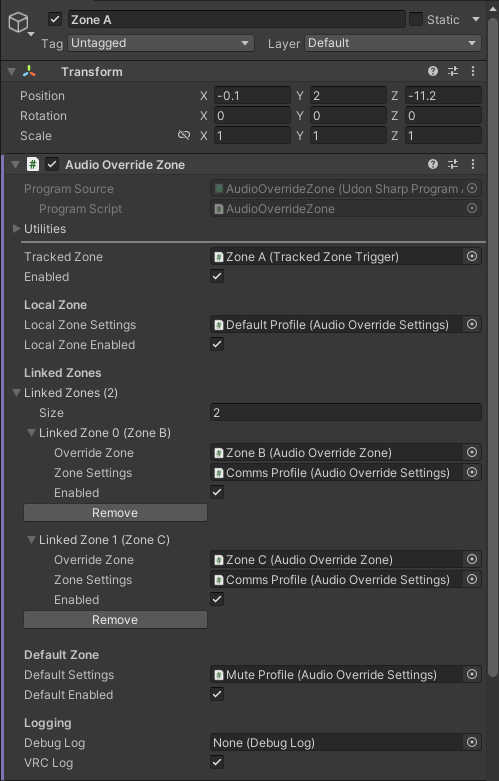
Zone A - Greenroom
Local zone is set to Default profile, as we want to be able to talk in the greenroom.
Linked zones:
- Zone B (FOH): Anyone in the greenroom zone can hear the FOH with comms profile, so they can hear when they're up.
- Zone C (Stage): Anyone in the greenroom zone can hear the Stage with comms profile, so they can hear what is going on on stage.
Default zone is set to Mute profile, so anything other than the linked zones will not be heared in here.
Zone B - FOH
Local zone is set to Default profile, as we want to be able to talk at the FOH.
Linked zones:
- Zone A (Greenroom): Anyone in the FOH zone can hear the greenroom with comms profile, so they can hear questions from them.
- Zone C (Stage): Anyone in the FOH zone can hear the Stage with comms profile, so they can hear questions from them.
Default zone is set to Default profile, so that audience can still normally talk to FOH reporting issues.
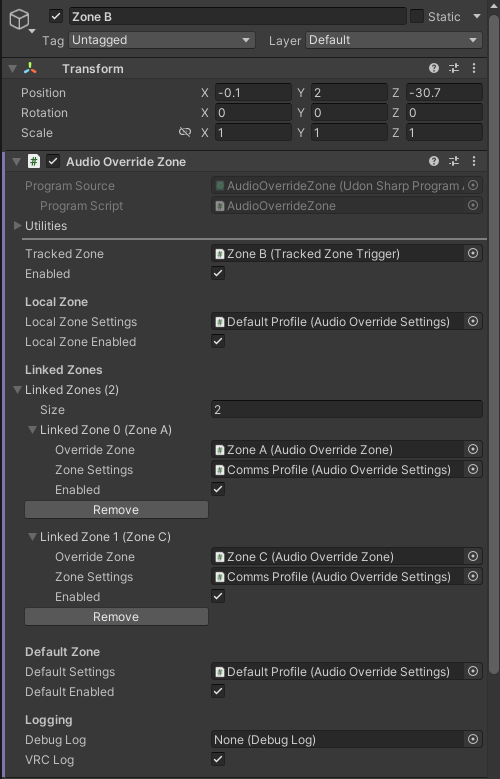
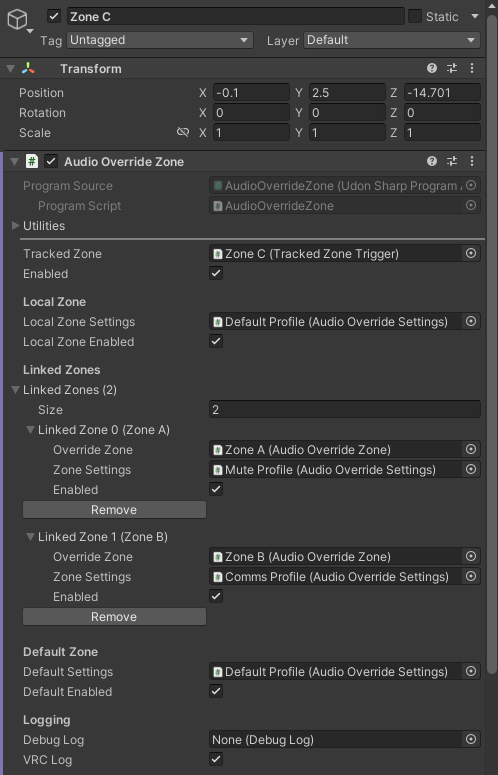
Zone C - Stage
Local zone is set to Default profile, as we want to be able to talk on stage.
Linked zones:
- Zone A (Greenroom): Anyone in the stage zone can NOT hear the greenroom.
- Zone B (FOH): Anyone in the stage zone can hear the FOH with comms profile, so they can hear when they're live.
Default zone is set to Default profile, so that audience can still normally talk to stage reporting issues.
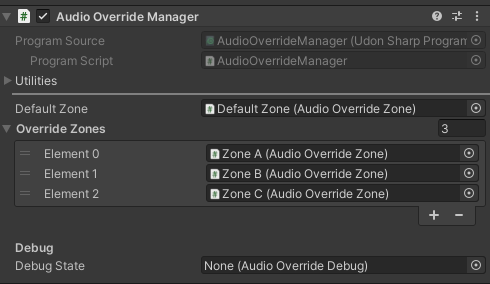
Audio Override Manager
The default zone we set to our Default zone and then we provide a list of the other zones.
Mic
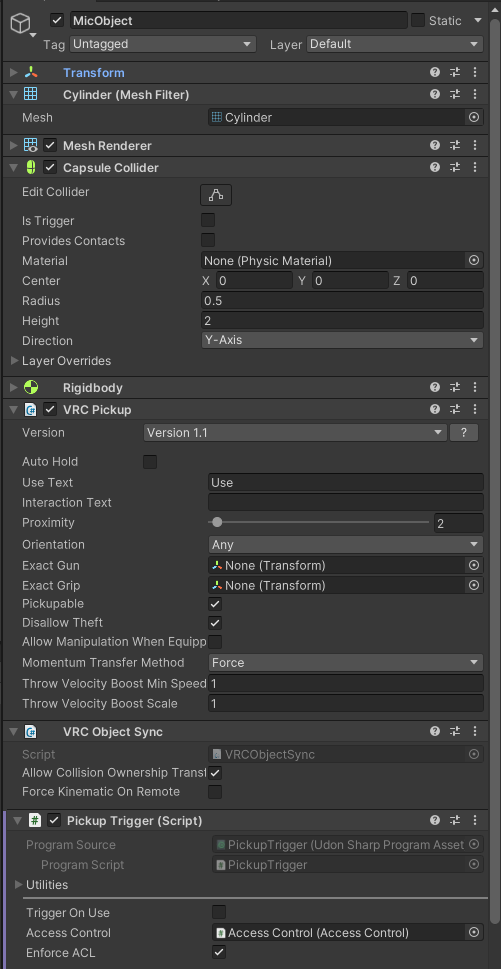
We also add a mic. For this you need two different objects.
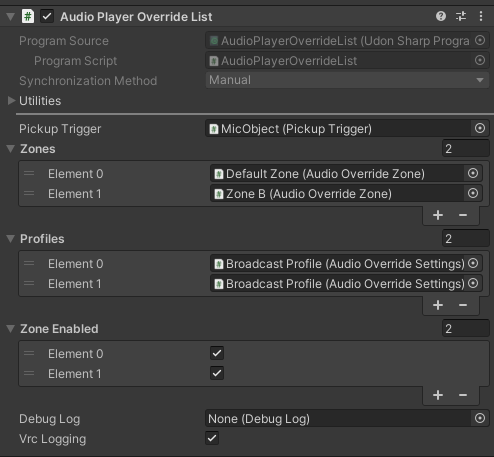
Audio Player Override List
This will determine what happens to the holding player's voice.
In this case when holding the pickup, the Default zone will hear the player at broadcast.
And Zone B (FOH) will also hear them at broadcast (else the FOH engineer cannot hear if the microphone is on or not).
Zone A (greenroom) and Zone C (Stage) are not listed, and thus will not be impacted by the player holding the microphone.
Mic Pickup
You can just use the prefab microphone as well, or make your own.